1.5 Loathing Documentation 1.5 Fear Documentation

Section I: A Brief Introduction to Fear 1.5

Introduction
"Hmm, I wonder how large of an explosion I can make..."

For many of us, this was the question that started us down the dark path of playing with Myth's tags. The innate desire to cause as much destruction as humanly possible. No more than a month after Myth: The Fallen Lords shipped, people were using hex editing tools to create lightning shooting archers, gigaton wights, and dwarves who could create some absolutely mind bending carnage.

Of course, after a little while, many of us mellowed out a bit and started playing with other things. And although we were still using hex editors and some basic, third party editors, we managed to create some awfully nifty stuff. I still vividly remember the first time I witnessed the seemingly mundane glory of a barrel exploding into a plethora of dwarf heads. Hey, nobody else had done it before.

Now, instead of figuring out the difference between the hexadecimal digits FF and 00, we have Fear. Fear is kind of like every Myth editor's dream application, a straightforward program that finally lays bare things people sacrificed months to decipher, often unsuccessfully. There are literally hundreds of things that were never understood, never uncovered, and never even suspected that Fear now lets us play with.

Things with names like Initial Z Deviation and J Component of a Wobble Phase Multiplier. Scary, eh? Think of this document as a dictionary. It contains explanations for all sorts of things you might have never understood, and definitions for all sorts of things you probably never cared about.

It is also, coincidentally, the kind of thing that only a masochist will sit down and read in one sitting. The whole idea behind this document is to teach you the basics, and then provide a reference that you can fall back on when you don't understand something. Flip to the section you need to read, and ignore the rest. You don't, after all, read the entire M section of a dictionary when trying to figure out what masochist means, do you?

So, now that you've slogged through that, it's time to start playing. Like meaty morsels dropped in a pool of piranhas, Fear and Loathing are going to stir up the waters a bit. Let the games begin.

Introduction to 1.5 Features
"Hmm, how about we make that explosion 3 times larger..."

Myth II v1.5 brings a host of new features for curious mapmakers to exploit. Rather than create a separate guide as we did with 1.4, we decided to update this and the equivalent Loathing document. Where we've been able to offer a more detailed explanation of something, we've done so using italics like this. You can easily spot the new features - they'll be the ones with the big red NEW on them. Hint: if you're familiar with Fear and only want to see the new features, you can easily do so by searching for NEW.

What Fear Does
Fear is a tag editor. It edits simple tags, complicated tags, tags of all shapes and sizes (with the exception of a few tags that it doesn't like).

Fine. So, what's a tag?

Myth II uses small data structures called tags to store all sorts of information, from models to sounds to collection. Simply think of them as data files for Myth, and you should have no problems. Tag files come in three varieties: single tag files, monolithic tag files, and plugin files.

The single tag files are just that, a single tag contained in a standalone file. These files are found in the local folder, inside sub-folders that organize these files into their respective types, such as projectiles or monsters. Standalone tags, when placed in the right spots, override or are added to existing tags found in the monolithic tag files.

Monolithic tag files are simply collections of tags neatly wrapped up in a single, easy to handle file. Since Myth II uses several hundred tags, these files are both easier to manage than hundreds of single tag files, and waste less disk space. The only problem is that no changes can be made to these files; you'll see why in the Saving Tags section. Instead, the tags contained within these monolithic tag files are overridden by single tags in the local folder. This way, you can make changes to these small, external files to your heart's content, but you will always have a clean version waiting to back you up.

Plugin files are kind of like miniature monolithic files that are generally used to organize and distribute the tags you have created. When you build a plugin file, all of the tags in your local folder are gathered up, neatly labeled, and placed in your plugins folder. You can then distribute these files, which often contain new maps but can be used for just about anything. When you tell Myth II to activate a plugin containing mesh tags, any changes to units or physics or anything else will only affect those contained meshes. Any tags that don't contain meshes (often new or modified units) will affect all maps and meshes, so be careful what you enable. Finally, keep in mind that you cannot edit a plugin file--the tags contained within plugins are not loaded by Fear. You will have to edit your original tags as standalone tag files, and then (once they're finished) build a new plugin.

Back on topic, what Fear does is edit these tags. Since tags are broken down into different types, Fear has different editors for each flavor of tag. For example, a monster tag is very different than a mesh tag. If you tried to edit one with the other's editor, you'd wind up with interesting (and very disappointing) results. When you open a tag, Fear automatically loads the correct editor, and you can go right to work.

By editing tags, you can change almost anything in Myth. Seriously. Units, physics, maps, interfaces. While Fear can't completely edit some objects (such as mesh objects, which are edited by Loathing, or new unit/scenery graphics which require 3rd party tools), it covers most of the bases, and can be used to create some pretty nifty stuff.

And now, without further ado, it is time to learn something useful (wipe that scowl off your face).

Table of Contents
It's a big document out there...

Section II: The Actual Use of Fear

Section III: Tag Specific Documentation

Section IV: Some Other Miscellany Stuff

Fin.

Section II: The Actual Use of Fear

Installing Fear
In order to do its work, Fear needs to be placed in the same folder as the Myth II application. More specifically, it must be in the same folder as the tags folder, from which it reads and loads the tags for you to edit.

On both the PC and Mac platforms, you will need to do a "Custom Install" to get Fear onto your hard drive. See the "Read Me" text on the Myth II CD for more information.

Opening and Editing Tags Image: Main Tags Group List
Opening tags is really very easy. If Fear is in the right place (that is, the same folder as the tags and local folders), you simply need to launch the Fear application to get started. Upon launch, Fear will automatically scan your tags and local folder, and create a list of all available tags.

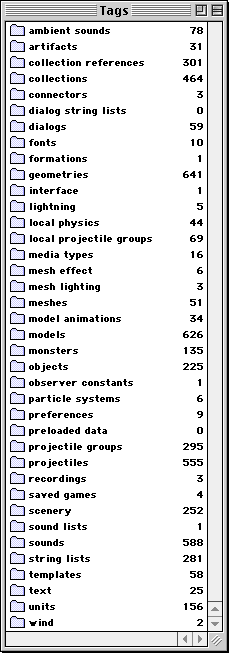
To start with, Fear will display a list of installed tag groups. These are collections of similar tags, such as artifacts, sounds, or scenery. Beside the group name is a number that tells you how many tags are contained in these groups. Some, like observer constants, will probably never have more than one, but others can contain hundreds of tags. Double clicking on any of these groups will open a new window containing a list of that group's tags.

In some cases, you will notice that the tag names are in bold or plain text. If a tag's name is in bold text, it means that that tag is contained in a grouped tag file; at first, most of the tags will have bold names. Plain text names, on the other hand, mean that the tag is contained in a single tag file inside the local folder. The distinction isn't really important until it comes to saving files.

Kudos to you if you've guessed the next step: find the tag you want to edit, and then double click on it. If Fear is able to edit that tag, it will open in the appropriate editor. If not, nothing will happen; if you are madly clicking on a tag and it isn't opening, odds are Fear can do nothing with it.

Since each tag editor is different, they will be covered in greater detail later, though the suspense is no doubt killing you by now...

Saving Tags
Here is one area where Fear is different than the majority of applications. If you venture into the File menu, you will notice that Fear has no Save options. The reason for this is simple--Fear saves changes automatically.

If you open a tag, make any changes (sometimes even this isn't necessary), and then click the omnipresent OK button, Fear will create a new single tag file in the appropriate group folder inside the local folder. If there is already an identical tag in there, Fear will overwrite it. Here is where the bold and plain names become very important. If you are editing a bold named, grouped tag, Fear will create a new single tag--your changes won't affect the original. However, if you are editing a plain named, standalone tag, the changes will overwrite the original tag file in the local folder. The moment you click the OK button, your changes are saved--if you've messed up, hit the Cancel button and try again.

When you're making serious changes to an object, you should follow the time honored practice of backing up your original local folder. Fear has no Revert command, but you can always toss the local folder and start with a fresh copy or a backup.

Now then, you know how to open and save tags. Time to make ugly, and start actually editing those things.

The Menus
Fear doesn't have many menu commands, but those that it does have are very handy.

File Menu

  • New Tag - This command creates a new tag file in the group whose window is currently open. For example, if you have the meshes group window open, this tag will create a new mesh tag.
  • Open - This command is disabled-- you can safely ignore it.
  • Close - This closes the currently open window. No surprises here.
  • Get Info - This brings up information on the currently selected tag. More on this in a later section.
  • Build
    • Build Monolithic Tag Files - This command takes all of the tags present in your tags and local folders, and rolls them into complete, grouped tag files. Since this is not reversible, you should make sure that everything is working nicely first. In most cases, you shouldn't use this anyway--building plugin files is much more convenient.
    • Build Plug-in File - This command takes all of the tags in your local folder, and rolls them into a plugin file which you can name. This file is automatically placed in your plugins folder. Once you've finished creating and modifying tags, this is awfully handy for distributing them.
  • Import
    • Overhead Map - This command is used to import a pict file for use as an overhead map in a netmap. It imports it, names it, and creates a new collection tag for it. The Windows version of Fear does the same, except that it imports Windows bitmap files.
    • Netgame Preview - This command is for importing a 377x190 pixel pict file bitmap on PCs) for use as a netmap pregame screen... otherwise, it works exactly like importing an overhead map.
    • Plugin Icon - This command is for importing a 415x120 pixel pict file (yup, bitmap on PCs) for use as a plugin preview screen (as seen in the plugins dialog when you select a plugin). The plugin icon is stored in a special, hidden collection type, and when you build a plugin, it will automatically use the last plugin icon you imported.
  • Load Tag From Data File... - This command is for loading dialog information from external dialog editors. You probably won't ever have to use this.
  • Dump Text For Group - This is used to make Fear dump all of the text present in the highlighted group. Handy for extracting text or string lists, but mostly useless for other tags.
  • Quit - This command, upon being used, causes the world to end in a blazing fireball. Please, use it responsibly.

Edit Menu

  • Duplicate - This command is used to duplicate a highlighted tag. This is really handy when you want to create a new tag, but don't want to start from scratch. Want to make that Screaming Iron Assault Dwarf? Duplicate the dwarf tags and work from there.
  • Remove - I don't think this works...

Getting Info Image: Get Info Dialog
The Get Info box, summoned by highlighting a tag (not a tag group...), and selecting Get Info from the File menu, is a handy little beast.

Get Info Dialog

  • Group - This is the group to which this tag belongs, such as meshes or projectiles. The four letters in the parentheses are the abbreviation for that group-mesh for meshes, proj for projectiles, and so on.
  • Subgroup - This the tag's abbreviated name, which Myth II actually pays attention to (it ignores the name, and deals with this instead). You can pretty much ignore this.
  • Size - This is the size of the tag in bytes. Remember, approximately 1,048,576 bytes is one meg (whee, useless trivia!).
  • Version - This is the version of Fear that this tag was created and last edited with. You can ignore it.
  • Destination - This is a filing setting-the grouped tag file selected in this pop-up is where this tag will go when someone uses the Build Monolithic Tag Files command in the File menu. While its location does not affect editing or use in any way, it is sometimes helpful to organize some tags into the appropriate grouped tag files. For example, most collections and sounds are marked to go in the large install file, as they are rather large and unnecessary for small installs.

Last Notes...
Fear, being the creation of a bunch of programmers for use by another bunch of programmers, has a few little things that may catch some people off guard. Here's a few of them.

Notes

  • Random Ranges - If you see two number fields right beside each other, separated by the word "to", you are dealing with a random range. They're really quite easy--Myth II simply chooses a random number from between the two numbers you give. The first field should always be smaller than the second, but if you ever want a random range to contain a constant value, just make the minimum (first field) and maximum (second field) the same value, and there you go. Myth II will always select this value.
  • Fractions - These are actually just decimal numbers ranging from 0.00 and up, usually to 1.00 (thought it can certainly go higher). It is easiest just to think of these like percents--1.00 is 100%, 0.50 is 50%, and 0.00 is 0%. You will often see these where you have random chance events, such as the chance a bottle has of exploding when it hits the ground. Just remember that 1.00 is full, and 0.00 is nothing.
  • I, J, K Components - These are just a different name for the X, Y, and Z components that we all know and love, except they are used in the context of a direction or velocity rather than a coordinate. I is X, or east and west across a map. J is Y, or north and south on a map. K is Z, or up and down in a direction perpendicular to the mesh. You will see a lot of these in the local physics objects, and scattered here and there throughout Fear.

Section III: Tag Specific Documentation

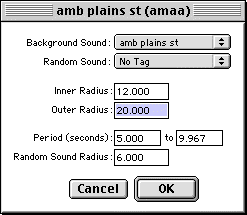
ambient sounds (amso) Image: Ambient Sound Editor
Ambient sounds are the sounds you hear in the background while you're playing. These can be anything from soothing natural noises to the cries of a boxing announcer (as implemented in some hilarious third party maps). While you can't actually edit the sound itself, you can modify some of its behaviors.

ambient sounds Tag Anatomy

  • Background Sound - This is the sound that is constantly played in the background, the ambient component of this ambient sound.
  • Random Sound - This sound is randomly played according to characteristics defined below, the random component of the ambient sound.
  • Inner Radius - This is the inner radius of the sound, or the blue circle when viewed in Loathing.
  • Outer Radius - This is the outer radius of the sound, or the cyan circle when viewed in Loathing.
  • Period (seconds) - This is the range that defines the random sound's period. The period of the random sound is the delay between each time it plays. The number is randomly selected from between the two numbers entered--to make it a constant value, enter the same numbers on both sides. Large period values result in less frequent random sounds, while short ones make the sound more common.
  • Random Sound Radius - This is the radius in which the random sound is audible.

artifacts (arti) Image: Artifact Editor
Artifacts are those nifty items you can find in the Myth world that modify the traits of the units that find them. They can be anything from a slight improvement (such as a charm to ward off paralysis) to an armageddon weapon that only your Screaming Iron Assault Dwarf can handle.

artifacts Tag Anatomy

  • Collection - This pop-up allows you to select the sprite collection that this artifact uses. This is used purely for the Inventory Sequence, nothing else
  • Monster Restriction Tag - This pop-up allows you to select the type of unit that can pick up this artifact. You might, for example, limit a magic sword to berserks, or a magical staff to warlock.
  • Monster Override Tag NEW - Select a monster tag that you want the unit to turn into when holding this artifact (must be used in concert with the Overrides Owner Monster flag). The monster must share the same collection as the monster its overriding. Using this, you can have a soldier pick up a bazooka and have its graphics, speed and attacks change to that of a soldier holding a bazooka.
  • Special Ability - This allows you to select the string list which contains the special ability text used by this artifact.
  • Initial Charges - This range contains the number of uses (ammo) this artifact initially contains.
  • Vanishes after a Time Period NEW - In the status bar you'll see a counter decreasing by the second, and when it hits zero the artifact vanishes.
  • Flags
    • Vanishes After Last Charge - If this is checked, the artifact disappears after its final charge is used. Otherwise, it still hangs around.
    • Remembers Charge Count NEW - If the projectile is dropped and then picked up again, it will have the correct number of charges remaining. Previously this would have reset the projectile to a full charge count.
    • Display Charges As Percentage NEW - Usually the number of charges left are shown as a number, however seeing you can now have some 32767 charges (the old limit was 127) you may occasionally wish to use the percentage method instead.
    • Cannot be Holstered NEW - If you look at the Monster section lower down you'll note that monsters can now be defined to hold up to 9 projectiles at once. Only one is actively "held" and thereby overriding attacks and so forth, while the others are considered to be hidden in the monster's coat … or "holstered". This flag means that you cannot switch to another projectile after picking up this one. It stays as the held artifact until its dropped or the unit dies. This is useful for when your Xena unit jumps onto a horse, and you don't want her to switch to using her Frisbee-of-death artifact unless she gets off the horse first.
    • Cannot be Discarded NEW - Once you pick this baby up, you cannot drop the artifact using the Inventory method (Shift-I).
    • Only Restricted Monster Overrides NEW - A "feature" in Myth has always been that not only the Monster Restriction Tag monsters can pick up a projectile. If, say, its of Small volume then a unit that picks up Small volume objects (like a ghol) could also get it. And furthermore the ghol could use the override attack as well. If you don't want this behaviour, check this box.
    • Restricted By Monster Collection NEW - Lets say you have a range of monsters, sharing the same collection of the Monster Restriction Tag, that you'd like to be able to use this artifact. Check this flag and that's what'll happen.
    • Overrides Owner Attack - If this is checked, this item overrides the attack of the unit that picks it up.
    • Overrides Owner Monster NEW - This enables the Monster Override Tag described above.
    • Use Original Death Projectile Groups NEW - If overriding the monster tag, however you don't want the override monster tag's projectile groups to be used on death, then tick this flag.
    • Not Dropped On Death NEW - Pretty much what it says.
    • Alters Monster Yaw NEW - When you pick this up, the monster will turn to face the direction the projectile was facing. Useful for cowboys getting on horses, soldiers into tanks etc.
    • Slows Monster Speed NEW - Used only with artifacts that override the Monster Tag, this will slow the monster to the speed in the override Monster tag regardless of whether the artifact is currently held or in the inventory. Useful if you've picked up a 10 ton anvil for throwing at an enemy, but have it in the inventory. The exception is when the current held artifact has Cannot be Holstered checked, in which case its speed value is used.
  • Artifact Sequences (window)
    • Inventory - This pop-up allows you to select the sequence that will be used for the artifact's inventory icon.
  • Artifact Projectiles (window)
    • Projectile - This pop-up allows you to select the projectile that represents this artifact, not the projectile its attack might generate. Actually, this is unused by Myth.
  • Effect Modifiers (window) - This set of modifiers override the unit's object damage modifiers. Each is a fraction that is applied to the damage of the appropriate type that is suffered by the holder of the artifact. 1.00 means that there is no change--the unit suffers damage as normal. A value of 2.00, on the other hand, would result in double damage, and a damage type of 0.50 would result in half damage. And 0.00...well, can you say Amulet of Utterly Senseless Invincibility?
  • Override Attack (window) - This window is identical to the attack edit window in the monster tag section. Please refer to it for more information on editing the artifact's override attack.

collection references (core) Image: Collection Reference Editor
Collection references are sort of like collection modifiers--they take a collection, and play with its tints and colors to create various permutations of a sprite set, allowing one to considerably alter a collection without creating an entirely new sprite set.

collection references Tag Anatomy

  • Collection - This allows you to select the collection referred to (and altered by) this collection reference.
  • Sprite Preview (un-named) - This area and buttons (Previous and Next) allow you to take a look at the sprites you are altering. Note that the sprite is automatically scaled to fill the area.
  • Permutation List (un-named) - This list allows you to add or delete new permutations, whose colors can be altered in the color list.
  • Color List (un-named) - This list shows all of the color available to alter within this collection. Double clicking on a color brings up the Color Edit window. It should be noted that the "primary" and "secondary" colors take on a special meaning in netgames--these colors are overridden by a player's chosen primary and secondary colors.
  • Tint
    • Tint Fraction - This color is used to tint the sprites, which allows you to do such things as tint a sprite with black to darken it for a nighttime map. Darkened units, darkened trees, and darkened projectiles all look better on a dark map than bright, happy daytime units.
    • Edit Tint Color - This button brings up the Color Edit window, which is used to select the tint color.
  • Color Edit (window)
    • Color (un-named) - This is the color (Wow! Really?). Clicking on the color brings up a color picker, so you can change it relatively easily.
    • Color Flags
      • Is Reversed - We can't remember exactly what this does...
      • Uses Global Tint - If this is flagged, the Global Tint of the mesh (see mesh object) is used in lieu of this color.
      • Is Unused - True to its name, this flag is unused. Ignore it.

collections (.256)
Collections are collections of graphics and sprites. Myth editing veterans will recognize these as .256 objects, where all of Myth's graphical elements are stored.

However, Fear cannot edit these tags-- they require an external, third party editor due to the sheer complexity of editing, importing, and exporting sprites. At present, the only such editor is Amber 2.0b6, a MacOS Classic application. We believe work is underway on a Windows equivalent to Amber.

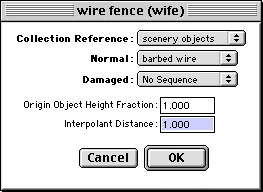
connectors (conn) Image: Connector Editor
Connectors are the things that are strung between scenery objects to create fences and other such objects.

connectors Tag Anatomy

  • Collection Reference - This pop-up allows you to select the collection reference used by this connector.
  • Normal - This pop-up allows you to select the normal, undamaged sequence for this connector.
  • Damaged - This pop-up is for selecting the sequence to be used when the connector is damaged.
  • Origin Height Fraction - This number is the height (on the pole object sprite) that the connector is drawn. This is used to adjust the height of the sprite, so that it isn't on the ground and actually appears to be properly strung between the fence posts.
  • Interpolant Distance - This is the distance (in world units) at which the connector sprite is repeated. This is used to create smooth, unbroken connectors--if this value is too large, there will be gaps between repetitions of the sprites, which (in terms of realism) Officially Sucks.

dialog string lists (ditl)
These are actually just another type of string list (more on these later). These string lists contain (surprise surprise!) lists of strings that are used by Myth II's dialog boxes. The reason they are separated is a closely guarded secret, but rest assured that it has nothing to do with mind control lasers or orbital mirrors.

If you ever feel a burning need to edit the strings in Myth II's error messages, look no further than these tags.

dialogs (bina)
Dialogs are the screens and boxes used by the Myth interface to give and receive information. Every window and dialog box is defined by one of these tags.

However, Fear cannot edit these tags-- they require external tools to be modified, which generally isn't a very good idea anyway.

fonts (font) Image: Font Editor
Fonts are, surprisingly enough, fonts used by the Myth application. While there isn't much you can do to these tags inside of Fear, you can play around with a few things.

fonts Tag Anatomy

  • Styles
    • Italic - This is the font that is substituted for this font when a |i switch is typed (a pipe followed by an I, the familiar italic text switch).
    • Bold - This is the font that is substituted for this font when the |b switch is typed.
    • Condensed - This is the font that is substituted for this font when the |c switch is typed.
    • Underlined - This is the font that is substituted for this font when the |u switch is typed.
  • Edit Kerning By Hand - This button, when clicked, asks you to choose which character you want to edit (just type it in), and then to enter the kerning for that character. Kerning is the width of the character, or rather how much room is allotted for it on a line of text. If a character appears to have too much space beside it, just decrease the kerning a bit.
  • Edit Kerning From File - This allows you to import a font into Myth, which is automatically kerned by the application. However, this requires specially prepared fonts, so you probably shouldn't mess with this one. Who wants to mess with fonts anyway?

formations (form) Image: Formation Editor
Formation tags contain alterable variables that allow you to customize (to a limited extent) the nature of your formations in Myth II. Since much of the formation information is hard coded and unchangeable, you cannot really change the shape of most formations. However, you can tweak them to provide just the right spacing for that defensive line or the perfect enclosure for that encirclement maneuver. Best of all, you don't have to worry about causing netgame problems-- your changes will not affect other players in the games you play.

formations Tag Anatomy

  • Maximum Units Per Short Line Row - This number defines the maximum number of units that will stand side by side per row in a Short Line formation (number 1).
  • Short Line Unit Separation - This number defines the amount of space between each unit in a Short Line formation (number 1).
  • Maximum Units Per Long Line Row - This number defines the maximum number of units that will stand side by side per row in a Long Line formation (number 2).
  • Long Line Unit Separation - This number defines the amount of space between each unit in a Long Line formation (number 2).
  • Maximum Units Per Loose Line Row - This number defines the maximum number of units that will stand side by side per row in a Loose Line formation (number 3).
  • Loose Line Unit Separation - This number defines the amount of space between each unit in a Loose Line formation (number 3).
  • Maximum Units Per Staggered Line Row - This number defines the maximum number of units that will stand side by side per row in a Staggered Line formation (number 4).
  • Staggered Line Unit Separation - This number defines the amount of space between each unit in a Staggered Line formation (number 4).
  • Box Unit Separation - This number defines the amount of space between each unit in a Short Line formation (number 5).
  • Minimum Mob Unit Separation - This number defines the minimum distance between each unit in a Rabble formation (number 6).
  • Mob X Bias - This number is used to determine how wide the mob is compared to how deep it is. A rabble with a value of two would be twice as wide as it is deep, while one with 0.5 would be half as wide.
  • Minimum Encirclement Radius - This is the minimum radius that an Encirclement formation (number 7 or 8) can have.
  • Shallow Encirclement Arc Length - This is the arc length (in degrees) that units in a Shallow Encirclement formation (number 7) try to line up on. 90 is a quarter of a circle, 180 is half a circle, and 360 is a complete circle.
  • Deep Encirclement Arc Length - This is the arc length (in degrees) that units in a Deep Encirclement formation (number 8) try to line up on. 120 is about a third of a circle.
  • Vanguard Front Row Separation - This number defines the distance between the units in the front row of the Vanguard formation (number 9).
  • Vanguard Unit Separation - This number defines the cumulative distance between the units in the Vanguard formation (number 9) as the row extends backwards. A large number creates a shallower V, while a smaller number makes a sharper formation.
  • Vanguard Row Separation - This number defines the separation between rows in a Vanguard formation (number 9).
  • Circle Unit Separation - This number defines the separation between units in a Circle formation (number 0). Smaller numbers make for tighter circles.

geometries (geom)
Geometries contain the data for model objects-- the actual, nitty gritty point data used to create a 3D structure.

Due to the complexity of 3D modeling, Fear cannot edit these objects. Like collections, they require an external, third party editor.

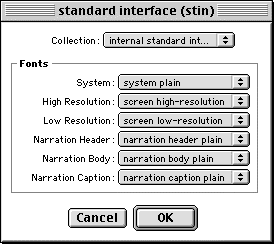
interface (inte) Image: Interface Editor
The interface tag contains a simple tag that organizes the Myth II interface. It points to the resources used by the interface, and probably won't make for very interesting editing, only a lot of headaches. No user serviceable parts inside, et cetera.

interface Tag Anatomy

  • Collection - This pop-up allows you to select the collection used by the Myth II interface.
  • System - This pop-up allows you to select the general system font.
  • Low Resolution - This is for selecting the in game font used when Myth is being played in low resolution mode.
  • High Resolution - This is for selecting the in game font used when Myth is being played in high resolution mode.
  • Narration Header - That's right-- this is for selecting the header font used during the narrations.
  • Narration Body - This is for selecting the main body font used during the narrations.
  • Narration Caption - This is for selecting the caption font used during the narrations.

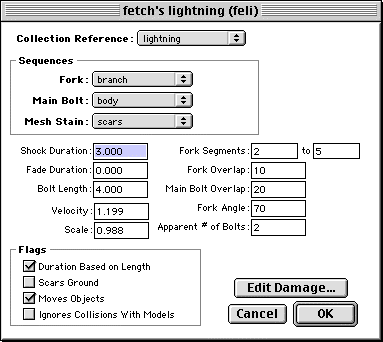
lightning (ligh) Image: Lightning Editor
Lightning is the attack effect that we all know and love. The lightning tags allow you to edit most of this weapon's characteristics, resulting in some bizarre variants of the original.

lightning Tag Anatomy

  • Collection Reference - This allows you to select the collection reference to use for this lightning object.
  • Sequences
    • Fork - This is the sequence used by forks coming off of this lightning bolt.
    • Main Bolt - This is the sequence used to create the main body of the lightning bolt.
    • Mesh Stain - This is the sequence used to create the mesh scar caused by this lightning bolt.
  • Shock Duration - This is not implemented... ignore it.
  • Fade Duration - This is not implemented... ignore it. Or ... not. When Bungie made myth 2 they halved the size of a world unit as part of making the mesh more detailed. Most values throughout the game, such as unit and projectile speeds, were doubled to take this into account. They forgot, however, to look at the lightning code. What happened as a result was that the individual segments that make up a bolt were now half the length they were before, resulting in a twisting knotty line with hairy forks coming off it - a very different effect from what had been seen in TFL. You can restore the appearance of TFL lightning by putting a value >= 0.500 in the fade duration field. If you put a positive value that is less than 0.5, the lightning will come partway towards TFL, but still retain the m2 curvature.
  • Bolt Length - This is the average length of the lightning bolt.
  • Velocity - This is the velocity of the lightning bolt--generally, lightning bolts are pretty speedy.
  • Scale - This fraction is the scale applied to the lightning bolt sequences. 1.00 is normal size, while 2.00 is double size and 0.50 is half size, etc.
  • Fork Segments - This random range determines the length of the segments that break off of the main bolt. These secondary bolts don't actually cause damage, but they sure look cool.
  • Fork Overlap - This is the number of pixels that the fork segment sprites overlap. Too little causes gaps in the bolt, as does too much. Fine tuning this number results in a nice, continuous bolt of lightning.
  • Main Bolt Overlap - Just like the fork overlap, except for the main bolt of the lightning.
  • Fork Angle - This is the angle at which forks split off of the main bolt. An angle of 90 would cause the forks to travel off perpendicularly from the main bolt, while greater values would actually cause the forks to travel backwards with respect to the motion of the bolt.
  • Apparent # of Bolts - This is (appropriately) the apparent number of bolts inside a bolt of lightning. Some lightning attacks use more than one bolt in order to simulate a complex, twisting bolt.
  • Flags
    • Duration Based on Length - If this is flagged, the duration of the bolt is based upon its length.
    • Scars Ground - If this is flagged, the bolt scars the ground when it explodes.
    • Moves Objects - If this is flagged, the lightning bolt moves things that are beneath its flightpath, by means of tiny, mostly non-damaging explosions. This does have the effect, however, of detonating explosives.
    • Ignores Collisions With Models - If this is flagged, the bolt can shoot through models as though they were not there. Not too realistic, but oodles of fun.
  • Damage Parameters (window) - This window is identical to the one used to set projectile damage parameters, so you should refer to the projectiles section for more information on how to use it.

local physics (phys) Image: Local Physics Editor
Local physics are the physics models used by Myth II to define such behavior as gravity and the motion of particles in a local projectile group. The are rather complex, having several different basic types with a whole host of variations thereof. In all cases, a physics model works on every particle in the local projectile group calling it. Be prepared to examine and compare some of the existing models before you have a solid understanding of them yourself.

local physics Tag Anatomy

  • Type - This pop-up allow you to select the type of physics model being used, and the Edit Physics Parameters button will bring up a different window depending on what you have selected.
  • Linear Physics (window)
    • Linear Acceleration
      • I component - This is analogous to the X (east/west) component of a particle's acceleration.
      • J component - This is analogous to the Y (north/south) component of a particle's acceleration.
      • K component - This is analogous to the Z (up/down) component of a particle's acceleration.
    • Random Acceleration
      • I component - This is analogous to the X component of a particle's random acceleration, which is randomly added to the linear acceleration.
      • J component - This is analogous to the Y component of a particle's random acceleration, which is randomly added to the linear acceleration.
      • K component - This is analogous to the Z component of a particle's random acceleration, which is randomly added to the linear acceleration.
    • Initial Linear Velocity
    • I component - This is the range between which the particle's initial X velocity is selected.
    • J component - This is the range between which the particle's initial Y velocity is selected.
    • K component - This is the range between which the particle's initial Z velocity is selected.
    • Flags
    • Projectiles originate within bounds - This flag is kinda tricky--when it is checked, particles are always created within the bounds of the group that called the physics model. This is demonstrated by such things as Soulblighter's crows, which all originate from within his body--the bounds of his local projectile group. Other examples of this are teleportation effects.
    • Projectiles respect group yaw - When this is checked, the axes of the physics model are twisted so that the positive X (or I) axis is facing in the same direction as the group that called it. Again, Soulblighter demonstrates this with his diverging crows, which always shoot out in front of him.
  • Cylindrical Physics (window)
    • Angular Acceleration - This is the acceleration of particles around the center of the cylinder.
    • Initial Angular Velocity - This range determines the initial velocity of particles traveling around the cylinder.
    • Initial Z Deviation - This value determines how spread out the particles are along the Z axis--this value is measured from the vertical halfway point of the object calling it, and the deviation extends above and below this mid range.
    • Attraction Constant - This is the amount of attraction the midway Z plane (see above) has for the particles above and below it. This attraction pulls the particles towards the plane, causing them to pass through the plane, oscillate above and below it, and cause a nifty wave motion.
    • Radial Velocity - This is the speed at which the particles move along their radius, away from the middle. Positive values cause the particles to move slowly away, gradually dispersing, while negative values cause them to move ever inwards.
    • Z Acceleration - This is the particle's acceleration along the Z axis, upward or downward.
  • Spherical Spring Physics (window)
    • Initial Angular Velocity - This random range determines the initial speed of the particles around the center of the sphere along the Z axis.
    • Attraction Constant - This is the amount of attraction the center of the sphere has for every particle in the system. The greater the attraction, the harder a particle is pulled towards the middle, and the faster it travels outward after passing through the middle.
    • Random time offsets - If checked, this causes the particles in this system to be randomly spaced out within the area, creating a more random pattern of particles. If this is not checked, many of the particles move in unison.
  • Point Attractor Physics - Due to a problem with energy loss (or rather, integer round-off), this model type doesn't work very well, and is more or less the same as a well designed spherical spring. Just Say No to point attractors.
  • Converging Physics (window)
    • Initial Angular Velocity - This random range determines the initial angular velocity (around the Z axis) of particles in this group.
    • Phi Min - This number is the minimum angle of elevation at which inbound particles will approach. For example, if it was 45, all particles would approach at an angle above 45 degrees.
    • Phi Delta - This number is upper value of a random range from which the angles of particles is selected (whew). Since 0 is the lower bound, a setting of 45 here would result in particles appearing anywhere between 0 and 45 degrees. To make particles come from every angle, just put 90 in here, since the angles are measured from the ground (0 degrees) to vertical (90 degrees) in every direction.
    • Diverge - If this is checked, the motion of the particles is reversed--they spread outwards instead of inwards.
  • Explosive Gas Physics (window - NEW) This physics type was imported verbatim from the Myth III code. We're not sure what it does, other than allowing an explosive type of effect.
    • Starting Velocity - The speed the projectiles have before they accelerate.
    • Radial Acceleration - This is the speed at which the particles move along their radius, away from the middle. Positive values cause the particles to move slowly away, gradually dispersing, while negative values cause them to move ever inwards.
    • Linear Acceleration - The I, J and K components allow you to define the speed at which the projectiles explode upwards and outwards.

local projectile groups (lpgr) Image: Local Projectile Group Editor
Local projectile groups are the tags that create such effects as smoke and fish jumping out of the water. Basically, they are groups of particles that are acted upon by local physics objects, resulting in predefined motion around a (usually) stationary spot on the map.

local projectile groups Tag Anatomy

  • Collection - This pop-up is for selecting the sprite collection reference tag used by this group.
  • Physics - This pop-up is for selecting the local physics tag that affects every particle in the projectile group.
  • Sequences
    • Flight - This is for selecting the in-flight sequence for the particles in this group.
    • Stain - This is for selecting the stain sequence used by this group.
  • Scale Fraction - This random fraction range is used to scale the sprites used for the group, which can be used to create particles of varying sizes in the group. This is awfully handy for things like smoke, which should have different sizes of puffs.
  • Animation Rate - This random fraction range is used to vary the speed of the sequence animations, resulting in such things as puffs of smoke that grow slower or faster than the others in their group.
  • Target Number - This random range is used to set the number of projectiles in the group.
  • Radius - This random range is used to determine the radius of the group, which works in team with physics models to create effects over areas of varying sizes.
  • Projectile Expiration Time - This random range determines the lifespan of particles in the group, which are in seconds. Long expiration times are handy for slow rising columns of smoke, while short ones are recommended for groups that contain large numbers of particles.
  • Height Offset - This value is added to the initial elevation of the local projectile group (remember, this can be raised above the ground) to offset it. If you want a group to originate higher than its starting point, insert a positive value. If you want it lower, use a negative value.
  • Startup Transition
    • Has Startup Transition - If this flag is checked, then the group has a startup transition as defined below.
    • Affects transparency - If this is checked, the transition fades the particles in.
    • Affects target number - If this is checked, the transition gradually adds particles.
    • Affects horizontal scale - If this is checked, the transition affects the horizontal scale of the particles... this can be handy for some special effects. The particles will go from the scale specified in the first field (0.00 being invisibly small, 1.00 being normal size, and 2.00 being double size, etc.) to the scale specified in the second field over the duration of the transition.
    • Affects vertical scale - If this is checked, the transition affects the vertical scale of the particles... this can also be handy for some special effects. As with horizontal scale, particles transit from the first scale to the second.
    • Time - This is the duration of the transition.
  • Duration
    • Has Finite Duration - If this is checked, the group has a limited lifespan.
    • Time - This random range is the lifespan of the projectile group
  • Ending Transition - This section is similar to the Startup Transition, except in the opposite direction--this transition is for when the group is ending.
  • Projectile Flags
    • Affected by wind - If this is checked, the particles in this projectile group are affected by the wind present in a mesh.
    • Deleted when they hit the ground - If this is checked, the particles are deleted when they hit the ground. This is great for thinks like fountains and leaves, which would otherwise build up and begin to slow things down.
    • Deleted after time expires - If this is checked, the particles are deleted after their duration expires.
    • Deleted after animation completes - If this is checked, the particles are removed after their animation cycles complete.
    • Do not animate - If this is checked, the projectiles are not animated, using instead a single frame for each particle.
    • Never get recreated - If this is checked, the group is a one shot deal--projectiles are never recreated, and the group essentially expires once the particles are used up.
    • Stay relative to center - If this is checked, the particles move along with the projectile group. An example of this is the confusion effect, which has little stars which always orbit the affected unit's head.
    • Created symmetrically - If this is checked, the particles will be created so that they are equal distances from each other, nice and symmetrical like. The confusion spell uses this flag to evenly space the stars around a hapless victim's head.
    • Don't respect height above ground - If this is flagged, the projectile group is always on the ground, no matter how high in the air it originated. Handy for fire, especially when using fire arrows to shoot hapless birds...
    • Always start at first frame - If this is checked, the particle animation always starts on the first frame, not the usual randomized frame. Useful for ensuring a proper sequence of frames
  • Group Flags
    • Always update physics - If this is checked, the local projectile groups physics are constantly updated, even if the group is invisible (due to a map action or other effect). Accelerations are applied, particles move, and so on even when you can't see them doing so.
    • Delete after particles are gone - If this is checked, the group is deleted when all of its particles are expired and used up.
    • Casts Reflections - If this is checked, the group casts a reflection in any nearby media. Good for most things.
    • Is media surface effect - If this is checked, the group is a media surface effect, like a ripple or a fish leaping, or maybe even a lava bubble.
    • Update per tick - If this is checked, the group's physics are updated once every tick, and only during every tick. This is important for some synchronized projectile groups. If the game is ever suffering from a poor frame rate or other slowdown, groups without this flag may begin to behave oddly, as their physics are not being updated consistently.
  • Transfer Mode - Transfer modes are how your particles behave during startup and ending transitions. Consequently, if your projectile group has neither, the transfer mode is ignored.
    • Fade In Over Time - If this is selected, particles fade in over the duration of the startup transition.
    • Fade In Over Animation - If this is selected, particles fade in over the duration of their animation sequences.
    • Fade Out Over Time - If this is selected, particles fade out over the duration of the ending transition.
    • Fade Out Over Animation - If this is selected, particles fade out over the duration of their animation sequences.

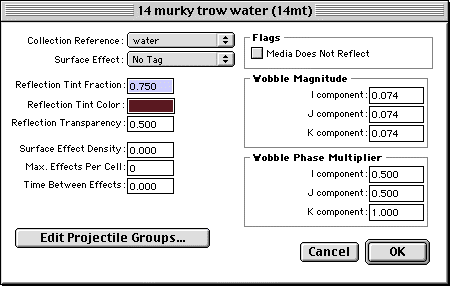
media types (medi) Image: Media Type Editor
Media types contain some of the information Myth II uses to determine the characteristics of water, or any other media, in a map. Such things as reflectivity and waves can be set and edited here, and the possibilities range from lava to sewage to spring water.

media types Tag Anatomy

  • Collection Reference - This pop-up allows you to select the collection reference used by this media type.
  • Surface Effect - This allows you to select a local projectile group for a surface effect, such as a fish jumping or a lava bubble bursting.
  • Reflection Tint Fraction - This is the intensity with which this media tints things reflected in it.
  • Reflection Tint Color - This is the tint color applied to objects reflected in this media.
  • Reflection Transparency - This fraction defines how transparent a reflected object is, which can be used to create murkiness in the water. 1.00 is fully transparent (therefore, no reflection), while 0.00 is not transparent at all.
  • Surface Effect Density - This is the density of surface effects on the media surface. If you have something like fish jumping, this should be fairly low. However, if you have something like active lava bubbling, this should be much higher.
  • Max. Effects Per Cell - This is the maximum number of effects that can appear in a single cell.
  • Time Between Effects - This number of seconds is used to space out surface effects, and in addition to the Surface Effect Density does a pretty good job at it, even if it isn't a random range.
  • Projectile Groups
    • Small Splash - This is the projectile group called when a projectile marked as having a small splash hits the media.
    • Medium Splash - This is the projectile group called when a projectile marked as having a medium splash hits the media.
    • Large Splash - Guess.
    • Bloody Splash - This is the splash projectile group made when a projectile flagged as being bloody hits the media.
    • Floating Splash - This is the splash projectile group called when a floating object (such as a netgame ball) hits the media.
    • Steam Splash - This is the projectile group called when a projectile marked as being on fire hits the water.
    • Disturbance - This is the projectile group called when a unit walks through the media (its wake).
  • Flags
    • Media Does Not Reflect - If this is checked, the media will not reflect objects. Useful for special media like lava.
  • Wobble Magnitude
    • I component - This is the amount of wobble (undulation... well, waves) that this media type has along the east/west axis.
    • J component - This is the amount of that this media type has along the north/south axis.
    • K component - This is the amount of wobble the media has in the up/down direction.
  • Wobble Phase Multiplier
    • I component - This multiplier fraction is applied to the east/west wobble of this media type. 1.00 is normal wobble, while 0.00 is no wobble whatsoever. Any value above 1.00 is exaggerated wobble--try taking a look at the level 19 Tain media to see a good example of this.
    • J component - This multiplier fraction is applied to the north/south wobble of this media type. 1.00 is normal wobble, while 0.00 is no wobble whatsoever.
    • K component - This multiplier fraction is applied to the up/down wobble of this media type. 1.00 is normal wobble, while 0.00 is no wobble whatsoever.

mesh effects (meef) Image: Mesh Effect Editor
Mesh effects are the rippling, wavelike deformations of the ground caused by explosions or other similar events. Wight explosions, satchel charges, and some magic spells call mesh effects, making the ground wave beneath them. It helps to take a look at some of the existing mesh effects to get an idea of how the numbers affect them.

mesh effects Tag Anatomy

  • Amplitude - This is the vertical measure of the effect--how high and how low the waves travel relative to ground level.
  • Velocity - This is the speed at which the wave expands outwards from its source.
  • Cutoff Radius - This is the maximum distance away from the origin that the wave can travel.
  • Dissipation - This is the rate at which the wave diminishes as it travels outwards.
  • Epicenter Offset - This value causes the ripple to begin further away from the epicenter (where the mesh effect was actually called). For example, a wight with an offset would not cause the ground beneath him to ripple, only the ground further out.
  • Camera Shaking Type - This setting allows this mesh effect to shake the camera when it is called. Earthquake causes the camera to shake a bit, build up to some serious shaking, and then fade away over about eight seconds. Explosion, on the other hand, skips the pleasantries and goes right to shaking. Keep in mind that these cause the camera to shake no matter where it is in relation to the explosion, and should be used very sparingly. Expect a mob of people to lynch the first hapless individual who creates a netmap using anything that shakes the camera...
  • Is Inverted - If this is checked, the mesh effect first goes down, then comes up, instead of the other way around.
  • Shockwave
    • Has Shockwave - If this is checked, the mesh effect also generates a shockwave using the following information.
    • Collection Reference - This is the collection reference from which the mesh effect draws its shockwave sprites.
    • Sequence - This is the sequence used by the shockwave.
    • Number of Radial Points - This is the number of points around the edge of the shockwave. More points result in a smoother, but slower, shockwave. Just for giggles, try making four and fewer point shockwaves...
    • Thickness - This is how thick the shockwave is from its leading to trailing edge.
    • Height Offset - This is the distance between the shockwave and the ground.

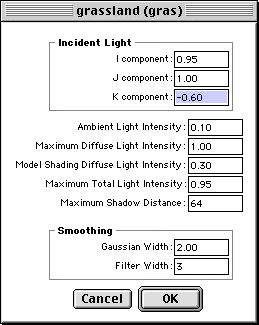
mesh lighting (meli) Image: Mesh Lighting Editor
The mesh lighting tag contains the constants used by Myth II's lighting engine to create light and shadows on a map. There aren't many interesting things to edit here, but you might want to check it out if you're creating a map with radically different lighting (a night or high noon map comes to mind).

mesh lighting Tag Anatomy

  • Incidental Light - This is the primary, angled light for the entire level, like the sun. The angle at which it faces is determined by the IJK components, and it helps to think of the angle and direction of the light as a particle flow whose velocities are determined by the components below.
  • I component - This is the east-west component of the light/particle flow.
  • J component - This is the north-south component of the light/particle flow.
  • K component - This is the up-down component of the light/particle flow (this should always, always be negative, unless you are doing some whack things).
  • Ambient Light Intensity - This is the intensity of the ambient light on the level.
  • Maximum Diffuse Light Intensity - This is the maximum, unmodified intensity of light on the map
  • Model Shading Diffuse Light Intensity - This is the intensity of the light in the shadow of a model. A high value makes the shadows lighter, while a value of 0.00 would make the models have an absolutely dark shadow.
  • Maximum Total Light Intensity - This is the maximum total light intensity on this mesh.
  • Maximum Shadow Distance - This is the maximum distance at which shadows will be calculated for a model. Conceivably, if this was too small, the shadows of your models (as calculated in Loathing) would be cut off. However, this is unlikely with most models, and a higher value here results in slower shadow map calculation.
  • Smoothing
  • Gaussian Width - This is the width of the Gaussian blur that is applied to model shadows when the shadow map is calculated. The larger this value, the more blurred your shadows will be.
  • Filter Width - This is the width of the filter as applied to the shadows. Basically, larger values contribute to blurrier shadows. Don't sweat the details, as they say...

meshes (mesh) Image: Mesh Editor
Meshes are among the most complex objects in Myth II. They're also among the most important--they contain much of the information used to create a map in the form of references to other tags.

Due to their complexity, meshes cannot be edited entirely in Fear-- you need an external editor like Loathing to do any major alterations involving terrain, units, or scenery. Fear does, however, allow you to edit a number of very important map characteristics.

mesh Tag Anatomy

  • Landscape - This pop-up is for selecting the level's texture map collection.
  • Media - This pop-up is for selecting the level's media characteristics.
  • Mesh Lighting - This pop-up is for selecting the level's mesh lighting tag, which determines such lighting characteristics as shadows.
  • Particle System - This pop-up is for selecting the weather that is acting upon the level, such as snow or rain.
  • Ambient Sound - This pop-up is for selecting the ambient sound that can be heard at any location on the mesh. Unlike placed ambient sounds, this sound is omnipresent and always at a constant volume-- it can be used for such interesting effects as background music (if done right).
  • Map Description - This pop-up is for selecting the string list that contains the map's name and in game messages.
  • Wind - This pop-up is for selecting the level's wind tag, which determines wind characteristics.
  • Collections
    • Pregame - This pop-up is for selecting the level's pregame picture (collection).
    • Overhead Map - This pop-up is for selecting the level's overhead map.
    • Mesh Lighting - This pop-up is for selecting the level's postgame picture (collection).
  • Next Mesh
    • Success - This pop-up is for selecting the mesh players proceed to if victorious.
    • Failure - This pop-up is for selecting the mesh players proceed to if they fail to meet mission objectives.
  • Flags
    • Single Player Map - Is this map a solo campaign map, or a netgame map?
    • Supports Unit Trading - Does this map allow unit trading in netgames?
    • Supports Veterans - Can this map accept veteran units from prior levels or games?
    • Has Limited Terrain Visibility - If checked, the player cannot move the camera to where his units have not yet explored.
    • Is Complete - If checked, the overhead map is completely visible at the start of the game, as in netgames.
    • Can Catch Fire - If unchecked, no part of your mesh can burn. Period. Of course, nobody wants this checked...
    • Leaves Overhead Map Closed - At the start of the game, the overhead map will be closed, though it can be re-opened by the player.
    • Is Training Map - Myth II will open the first map it finds with this flag when the player clicks the "Tutorial" button on the main screen. Generally, you won't need to screw with this.
    • Has Ceiling - Does your map have a ceiling? Indoor maps usually have this checked, which prevents debris from flying over walls.
    • Has Terrain Following Camera - This flag makes the camera automatically raise and lower as you fly over rising and falling terrain. Rather annoying, but possibly useful.
  • Cutscene Movies
    • Pregame - The tag of the cutscene movie to play before the level.
    • Success - The tag of the cutscene movie to play after a victory.
    • Failure - The tag of the cutscene movie to play after failing to complete a level.
  • Storyline
    • Pregame - The collection (picture) to use as a pregame scene in a solo player level.
    • Picture Captions - The string list to use as a caption displayed beneath the pregame picture.
  • Game Scoring Types - Checking these boxes enables the corresponding game types on the map. Naturally, this is only for netgames, and you must ensure that the appropriate game objects (flags, balls, etc.) are placed on the map with a map editor ahead of time.
  • Lighting
    • Dark Color Fraction - This is the maximum intensity of the dark color that can be used by a shadow. 1.00 results in maximum color, while numbers in the 0.75 to 0.9 range are more common. See the entry below...
    • Edit Dark Color - This is for selecting the dark color, which is the color cast by shadows on this mesh. Combined with the Dark Color Fraction, this is the darkest color that can be created by shadows. Usually, black is used for this.
    • Light Color Fraction - Like Dark Color Fraction, but for the light color. Usually, this is much smaller than the Dark Color Fraction, in the 0.10 to 0.50 range.
    • Edit Light Color - This is for selecting the light color, which is the color created by light casting objects. Think of it as the opposite of the darkest color--an area under maximum illumination will be this color.
    • Transition Point - This is the zero point--the illumination level at which there is no lightening or darkening on the mesh. Playing with this, you can make an entire map brighter (by decreasing the value) or darker (by increasing it).
  • Reverb Properties - Note that sound reverberation affects are not supported on all computers...
    • Environment - This pop-up allows you to select the generic sound environment.
    • Volume - This is the volume of the reverberations.
    • Decay Time - This is the time it takes for a sound to die away. Typically, a place with bare, hard stone walls would have a higher decay time, while a place with no walls (and thus, no echoes) would have a time of 0.00.
    • Damping - This is how much of the sound is absorbed by the environment.
  • Global Tint - This color is used to tint all colors on this mesh that have the "Uses Global Tint" flag set in their colors in their collection references (whew). The result is that you can set a unit's tint to Use Global Tint, and then set this tint on the mesh so that all of those units have the tint that you specify here. Very handy for night maps.
  • Team Count - This is the maximum number of teams on your map. This number does NOT include Team -1, which is used for scenery objects and other non-player objects.
  • Ceiling Height - This is the height of the ceiling in world Units. This number is ignored if the Has Ceiling flag is not checked.
  • Edit Blood Color - This allows you to edit the basic blood color on your mesh. Remember, extremely bright reds look unrealistic-- darker reds look much better in actual gameplay.
  • Fog - Fog is a wonderful, fantastic, incredibly neat looking thing that you should probably never use. Well, use it sparingly--fog effects are only available on some computers using certain hardware accelerators, and while it looks very nifty for them, other people won't even see it, and this can be a major advantage in some cases (like netmaps with thick fog).
    • Density - This is the density of the fog. Dense fog is harder to see through, and light fog is more like a barely noticeable mist, which can be great for adding atmosphere to a map.
    • Fog Color - This is for selecting the color of the fog. Usually, a nice light gray will suffice, but an enterprising person might use a black fog to create the illusion of night.

model animations (anim) Image: Model Animation Editor
Model animations are the tags that allow such effects as a windmill's turning blades or a raising drawbridge. They work very closely with models (surprise surprise!), but are actually fairly simple once the models are available.

model animation Tag Anatomy

  • Frames (un-named) - This nameless list window allows you to add, duplicate, or delete models that will be used as frames in your animation sequence. Clicking Add or double-clicking on a model brings up a small dialog box that allows you to select the model from a pop-up menu, or a Permutation, which is basically a variation of that model's textures and appearance.
  • Ticks per frame - This number represents the number of ticks (thirtieths of a second- 30 ticks = 1 second) per frame in your animation.
  • Flags
    • Random Initial Frame - The animation starts on a random frame in your list.
    • Animation Cycles - When this box is checked, the animation loops, returning to the first frame after the last and never ending.
    • Animate Back and Forth - When this box is checked, the animation runs through the frames, reverses direction, and then runs backward to the first frame.
    • Animation Initially Running - When this box is checked, the animation will start off running. If unchecked, the animation will require an external prompting to start up, as supplied by a map action in the game.
  • Sound
    • Forward - This pop-up allows you to select the looping sound to be played while the animation is running in a forward direction.
    • Backward - This pop-up allows you to select the looping sound to be played while the animation is running in a backward direction. Usually, you will only need to supply this sound if you have Animate Back and Forth checked.

models (mode)
Model tags are the actual tags you embed into a mesh--they contain all of the information used by a model except the actual geometry, which is contained in a geometry object. They also contain such information as the placement of textures, permutations, and transparency.

Again, due to the complexity of these objects, model tags are handled by external, third party editors and not by Fear itself.

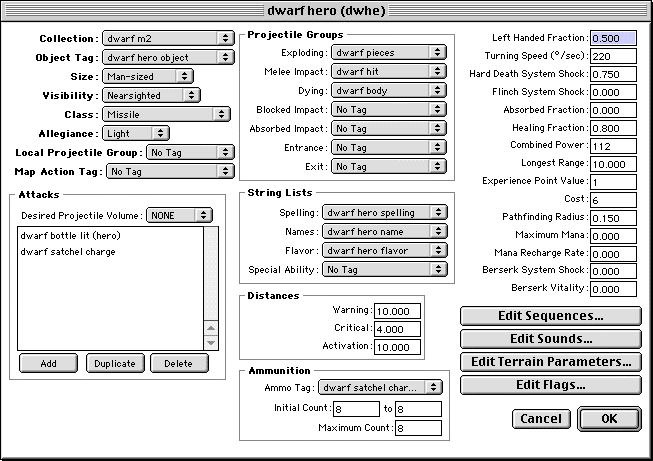
monsters (mons) Image: Monster Editor
Monster objects are a common source of confusion. While easily being the most fun objects to play around with, they are often misunderstood-- a monster tag actually contains the behavior data for all units, not just monsters. The stats and behavior for warriors, berserks, and dwarves are all defined here alongside mauls, Myrkridia, and Trow. Lots of fun to tinker with...

Just remember that, when you create a new monster tag, you MUST ALSO create a unit tag that points to it, or your unit will not be available in map editors like Loathing.

This tag has been the subject of most enhancements in the 1.4 and 1.5 updates...

monster Tag Anatomy

  • Collection - This is the collection of sprites used by this unit. Often, a unit is designed around these collections, not vice versa, so it might be a bad idea to switch these around (unless you been playing with the collections...).
  • Object Tag - This box is for selecting a unit's type. See the objects entry for more information on these tags.
  • Size - This flag is not for determining actual size, but for determining certain characteristics of a unit. A unit's size determines such things as whether or not a Trow, for example, will punch an enemy (if the enemy is giant size) or kick it (if it is smaller). It looks awfully silly when a Trow punches a dwarf, and even sillier when it kicks another Trow.
  • Visibility - This box allows you to select a unit's field of vision. A nearsighted unit does not see as far as a farsighted unit does, which means units will not fade in or appear on the overhead map until they are closer. If set to None, then the unit is essentially blind-- generally not a desirable thing, but it could be used for some unique units.
  • Class - This is the general class of units that this unit belongs to. The most common are Melee and Missile; hand to hand and long range units, respectively. Other unit classes include Suicide (such as Wights), Harmless (such as those hapless peasants), and Ambient Life (such as birds or chickens). Two others, Invisible Observers (hidden units that are used for map action scripts) and Special (not really used), are mostly used in map design.
  • Allegiance - This pop-up is for selecting a unit's allegiance-- Light, or Dark. In netgames, this doesn't matter, but in the solo game, it... well, it still doesn't matter much there either. Still, you should set this flag appropriately.
  • Local Projectile Group - This pop-up allows you to select an ambient local projectile group for your unit, one that follows the unit around. For example, if you select a chimney smoke group for your unit, he will appear to be perpetually smoking. This can be used for anything from mundane smoke to wild energy effects whirling around your unit.
  • Map Action Tag - This pop-up is for selecting a map action that will automatically be created for this unit when it is created in a level. Chickens and ambient life use this to create their wandering effects, and it is possible to create such things as ambient Wights with this tag.
  • Carries Multiple Items (NEW) - You can type a minimum of 1 and a maximum of 9 if you check this flag. This will allow the unit to pick up multiple things at once. The player can switch between them using the new I key (Inventory) and shift-I to drop them.
  • Attack Frequency (NEW) - This provides an additional random delay range for attack recovery, and previously existed in the TFL monster tag. For the mapmaker who doesn't want their unit's sword swings to be as predictable as a swiss watch.
  • Attacks
    • Desired Projectile Volume - This pop-up is used to determine how large of a projectile a unit can pick up. Ghols, for example, prefer Small projectiles for their attack, and thus are set to small. This setting does not affect picking up ammunition.
    • Attacks (un-named) - This window list shows all of this unit's different attacks. You can add, duplicate, or delete entries from this list, and double click on them to edit them, which brings up a new Attack Edit window (see below).
  • Attack Edit (un-named window)
    • Projectile - This pop-up allows you to select the projectile created by this attack.
    • Sequences (un-named) - This list of four sequences defines the appearance of the attack. Double clicking an entry allows you to select one of this unit's available sequences (as defined in its collection). Selecting no sequence causes no sequence to be played--you should always have a sequence. In fact, Myth will not load if you don't have a sequence specified. In addition to selecting the sequence, opening the sequence edit window allows you to edit these three flags:
      • Normal - If this is checked, this sequence will be used as the unit's normal, default attack. An attack must have at least one Normal sequence. If it has more, it will randomly select a sequence from those available, which is how warriors can be made to swing their swords differently.
      • Declinated - If this is checked, this sequence is used when a unit is shooting at a downwards angle. Bowmen are great examples of this in action, as they have all three sequences and use them frequently. If no Elevated sequence is specified, the unit will simply use the Normal. And if no Normal is set, then the universe will implode and destroy all of reality. Be sure to set your Normal sequence.
      • Elevated - If this is checked, this sequence is used when a unit is shooting at an upwards angle. Again, bowmen are great examples of this in action. If no Elevated sequence is specified, the unit will simply use the Normal.
    • Minimum Range - This is the minimum range of this attack. If a target is inside this range, the unit will move away and try to correct this. Dwarves and archers use this.
    • Maximum Range - This is a unit's maximum attack range. Melee units usually use 2.000 for this, while Missile units often have a much greater range. Keep in mind that an attack's range is also limited by characteristics of the projectile being fired.
    • Repetitions - This is the number of times that an attack is carried out per command. If you set an archer's repetitions to 5, he will fire five arrows in rapid succession before pausing to... well, reload. NEW: If this number is negative and Uses Ammunition is also checked, the attack will restore ammunition by the number specified in Repetitions. Very useful for reload attacks.
    • Miss Fraction - This is the fraction of times that a unit will miss with his attack. For Melee units, this manifests as a harmless sword swipe, while for Missile units it results in an off shot. 1.00 causes the unit to miss all the time, while 0.000 results in no misses.
    • Initial Velocity - These two fields show the range between which a projectile's initial velocity will be. It will be a random value between the two specified, so make sure the first is less than the second. If you want the value to be constant, enter the same number in both fields. Melee attacks use 0.00 to 0.00, while a dwarf ranges from .150 to .170.
    • Initial Velocity Error - This is the amount of error that will be introduced to perfect initial velocity, causing the shot to miss. Melee units have an error of 0.00, while Missile units will often have a small error to keep them from hitting every time.
    • Velocity Experience Delta - This is the amount that is removed from the Initial Velocity Error every time a unit scores a kill, resulting in more and more accuracy as the unit becomes more experienced.
    • Recovery Time - This is the amount of time between a unit's attacks, in seconds. Keep in mind that a unit's attack time is also affected by the speed of its attack sequence animation. A unit cannot attackfaster than that its animation can run. Also be aware that the Recovery Time is added again for every repetition in the attack. So if you have 10 repetitions and a recovery time of 0.1, the unit will actually pause a full second before firing again.
    • Recovery Time Experience Delta - This is the amount that is removed from the Recovery Time every time a unit scores a kill, resulting in faster and faster attacks as a unit grows more experienced.
    • Mana Cost - This is the cost of an attack in mana. A warlock's fireball has a value of 55.00, which is about half of his mana. NEW: This value can also be negative, causing the mana to be restored by the attack.
    • Attack Flags (inside Attack Edit window)
      • Is Indirect - This is whether or not an attack is directly targeted at a unit. An indirect attack is usually explosive, affecting any number of units around it, while a direct attack is a melee attack,that affects a single unit and no others. If indirect is checked then the unit will lob the projectile high in the air rather than throw it directly at the target.
      • Does Not Require Solution - If this is checked, the unit will attack as soon as an opponent is in range. He doesn't aim, doesn't check for elevation, or any of that jazz. He Just Does It. Great for guided attacks.
      • Aimed at Target's Feet - If checked, the projectile is aimed to hit the ground at the target's feet. This is useful for area effect attacks, like explosives, but lousy for impact weapons, like arrows or melee attacks.
      • Leads Target - If this is checked, the unit looks at how fast and what direction a unit is moving in and takes these into account before attacking. While this greatly improves accuracy, it can result in some shockingly stupid moves-- a dwarf will sometimes throw straight up into the air in order to lead a unit rushing towards it. The result is more often a dead dwarf than a dead opponent. Still, check this if you unit is using a missile attack.
      • Uses Ammunition - Just what it says. Attacks checked with this use ammunition from the unit's carried store, which is set elsewhere in the monster tag.
      • Uses Carried Projectile - This is what ghols do-- this attack uses a projectile determined by the unit's ammunition, which can be anything from a pus packet to an old sword to a head. Your damage and mileage may vary.
      • Is Reflexive - If this is checked, the unit inflicts this attack on itself. Silly in most circumstances, but very useful for targeting the ground directly beneath a unit (as a dwarf does when laying satchels) or inflicting a suicide triggering wound, as a wight does with its dagger.
      • Is Special Ability - If this is checked, the attack is activated using the Special Ability key (default T).
      • Is Primary Attack - If checked, this attack is the default attack selected and used when you simply tell a unit to attack a target. If this is not checked, you must trigger this attack using a double click, as in the case of an archer's knife attack.
      • Avoids Friendly Units - If this is checked, the unit takes into account the presence of friendly units when lining up for a shot (though, he never seems to do a good job). Should be checked for units using an explosive attack who might harm a friendly unit by attacking.
      • Vs. Giant Sized - This is an attack used only against units whose size is set to Giant. An example is a Trow's punch.
      • Prohibited vs. Giant Sized - This is an attack that cannot be used against Giant sized units. An example is a Trow's kick, which is used only against smaller units.
      • Is Fixed Pitch - If checked, the projectile will always be fired at an angle, resulting in an arcing shot instead of a direct, melee shot. Examples include dwarf cocktails and archer arrows.
      • Don't shoot over nearby units - If this is checked, the unit will not try to shoot over a nearby unit. This is very handy for dwarves, who we all know are stupid enough to try and throw a bottle through a comrade's head.
      • Lob to hit lower nearby units - If this is checked, a unit will try to lob a projectile at a target if that target is nearby and below the unit. This is specifically designed to help dwarves lob grenades from castle walls.
      • Can be used against friendly units - If this is checked, this attack can target friendly units. This is necessary for such things as healing, but not necessary for such things as fire arrows or dispersal dreams (though, we all love shooting those lippy dwarves with fire arrows...).
      • Player can Interrupt (NEW) - If this is checked, the attack animation does not need to complete before the unit responds to user movement or other commands. This can be very useful for long-winded attacks (such as a napoleonic soldier reloading his musket) that you'd like the player to be able to abort easily.
  • Projectile Groups
    • Exploding - This is the projectile group created when a unit suffers a "hard death"-- by an explosion or other sufficiently violent event.
    • Melee Impact - This is the projectile group created when a unit is struck with a melee attack, like a sword.
    • Dying - This is the group created when a unit suffers a "soft death"-- by melee attacks or fire, etc.
    • Blocked Impact - This is the group created when a unit blocks an attack, like a warrior does with his shield.
    • Absorbed Impact - This is the group created when a unit absorbs a blow, like a journeyman does with his coat.
    • Entrance - This is the group called when a unit enters the map. Usually, this is left empty.
    • Exit - This is the group called when a unit exits the map. Usually, this is left empty too, with exceptions such as Soulblighter, who can call his crow effects.
    • Burned (NEW) - If your unit died of fire damage, you can use this to specify a projectile group that has them running in circles screaming like a stuck pig, with flames and smoke pouring off them before collapsing in a charred heap. I'm such a sadist.
  • String Lists
    • Spelling - This is for selecting a unit's spelling string list, which contains a unit's designation in singular and plural (i.e. Dwarf, Dwarves, or Ghol, Ghols).
    • Names - This is for selecting the string list that contains all of the unit's possible names.
    • Flavor - This is for selecting the string list that contains all of the unit's possible flavor texts.
    • Special Ability - This is for selecting the string list that contains the unit's special ability text, which is displayed when you trigger a Special Ability attack.
  • Distances
    • Warning - This is the distance at which a unit becomes aware of other units' cries for help, such as when they've been attacked.
    • Critical - This is the distance at which the unit is warned (made aware of) another unit's presence. It is also the distance within which a unit will look for new targets if their previous target dies.
    • Activation - This is the distance at which a unit takes action of its own volition upon another unit. Highly aggressive or alert units have very large values here.
  • Ammunition
    • Ammo Tag - This allows you to select the type of projectile a unit is carrying as ammunition.
    • Initial Count - These fields allow you to enter an initial ammunition level, randomly selected from between the two numbers. If you want a fixed initial amount of ammo, enter the same amount in both fields.
    • Maximum Count - The maximum amount of ammo a unit can carry.
  • Left Handed Fraction - The fraction of units whose sprites are reversed (making them appear left handed).
  • Turning Speed - The speed at which a unit can turn, in degrees per second.
  • Hard Death System Shock - This number is used to define just how much damage a unit has to take to suffer a hard death from such things as an extremely hard hit.
  • Flinch System Shock - This number is used to define just how hard a unit has to be hit in order to flinch, or hesitate in its attack. For example, trow have a very high value here, which is why they can take such a licking and keep on ticking.
  • Propelled System Shock (NEW) - This number is used to define just how hard a unit has to be hit in order to be propelled across the map by the damage. The Can Be Propelled flag must be checked for this to have any effect. Using this and the other Propulsion value, you could have a trow that literally kicks units around.
  • Damage to Propulsion (NEW) - This affects both the speed and duration of the propulsion a monster receives from damage. The highest number (1.0) means maximum propulsion, while low numbers mean the unit will barely stumble. Note: Propelled monsters will stay level with the ground and will stop if they run into an obstacle or impassable terrain. Sadly therefore you cannot use this feature to smack units off the side of a cliff.
  • Absorbed Fraction - The fraction of blows that a unit will absorb without damage. Journeymen, for example, absorb quite a few hits due to their thick coats.
  • Healing Fraction - The fraction of a unit's health that can be restored through healing. 1.00 is complete restoration, while 0.00 is none at all.
  • Combined Power - This number is used by the Myth AI to assess a unit's attack potential and danger. Consequently, units with a high Power are treated more seriously by the engine in terms of targeting, attack, and defense.
  • Longest Range - This is the longest range at which a unit can attack.
  • Experience Point Value - This is the number of kills a unit is worth to others who might kill it.
  • Cost - This is the unit's cost during unit trading.
  • Pathfinding Radius - This number determines the unit's "space bubble"-- the minimum distance it will allow between it and a allied unit who is trying to pass by it. Naturally, enemy units ignore this...
  • Maximum Mana - This is the maximum number of mana points that a unit has.
  • Mana Recharge Rate - This is the rate at which a unit recharges mana points.
  • Berserk System Shock - If a unit suffers more damage than this amount, it will go berserk, attack all nearby units, friend and foe alike.
  • Berserk Vitality - This fraction is the amount of life at which a unit will go berserk. An example is the Myrkridia, which have a setting of 0.25, and go berserk when reduced to a quarter of their health. Very nasty.
  • Sequences
    • Primary - This is the unit's primary, just hanging around sequence.
    • Transition to Secondary - This is the transition sequence from primary to secondary.
    • Secondary - This is the unit's second chillin' sequence.
    • Transition to Primary - This is the transition sequence from secondary to primary.
    • Moving - This is the unit's moving sequence.
    • Running - This is the unit's running sequence.
    • Pausing for Obstacle - This is the sequence to play while the unit is pausing for an obstacle.
    • Turning - This is the (you guessed it!) sequence to play when a unit is turning.
    • Blocking - This is for when a unit is blocking an attack.
    • Flinching - This is for when a unit is flinching.
    • Being Propelled (NEW) - This is for when a unit is being propelled by damage
    • Holding for Attack - This is for when a unit is waiting to attack.
    • Ammunition Icon - Sequence is the single frame icon displayed beside a unit's ammunition count, like a dwarfs satchel count or an archers flaming arrows.
    • Picking Up Object - This the sequence for when a unit is picking up an object.
    • Taunting - This is, quite shockingly, the unit's taunt sequence.
    • Celebration - This is the sequence played when a unit is celebrating a level or netgame victory. Often the same as their Taunt sequence.
    • Gliding - This is the sequence that flying units use when they are gliding.
    • Placeholder - This is, amazingly, a placeholder.
    • Head Shots - This is the unit's head shot, as displayed in the status bar at the top of the screen.
  • Sounds - The sounds dialog is very flexible, allowing you to fill slots with sound tags and specify what type of sound it is. The types you can assign are as follows.
    • Attack Order - This is called when a unit is ordered to attack.
    • Multiple Attack Order - This is called when the unit is repeatedly ordered to attack. Good for grumbling, petulant units like dwarves.
    • Attack Order vs. Undead - This sound is unimplemented... sorry.
    • Move Order - This is called when a unit is ordered to move.
    • Multiple Move Order - This is called when a unit is ordered to move multiple times. Also good for grumpy units.
    • Selection - This is called when you select (click on) a unit.
    • Multiple Selection - This is called when you repeatedly select a unit.
    • Hit Friendly Unit - This is called when the unit hits an ally. Usually an apology, or perhaps a warning.
    • Hit By Friendly Unit - This is called when the unit is hit by a friendly unit. Usually complaints.
    • Attack Obstructed By Friendly Unit - This is called when the unit's attack is obstructed by a friendly unit. Obviously, this is seldom called by melee units or units whose attacks are set to ignore friendly units.
    • Attack Enemy Unit - This sound is unimplemented... sorry.
    • Attack Enemy Unit with Friends Nearby - This sound is called when a unit is given an attack order and friendly units are nearby.
    • Sprayed with Gore - This sound is unimplemented... sorry.
    • Caused Enemy Death - This is called when the unit causes an enemy death (never would have guessed it...).
    • Caused Friendly Death - This is called when the unit causes a friendly death.
    • Caused Death of Enemy Undead - This is called when the unit kills an enemy undead unit.
    • Caused Multiple Enemy Deaths - This sound is unimplemented... sorry.
  • Terrain Parameters
    • Base Movement Speed - This is the speed at which a unit naturally moves. Note that changing this does not affect the unit's walking sequence animation, and major changes here will result in the walking animation not matching the unit's actual speed.
    • Speeds and Costs - All of these boxes determine whether or not a unit can cross a certain terrain. If the box is checked, a unit can cross this type of terrain. The Speed field beside it is the fraction of the unit's normal speed at which it will travel when it crosses this type of terrain (0.500 would be half speed, while 1.00 is full speed ahead and a speed of zero will make the terrain impassable for the unit). NEW: The previously unused Cost field is used to implement a number of extended flags, which are discussed under Monster Flags below. In addition, if you have the Use Extended flag ticked, you can put a value from 1 to 255 in Marsh Terrain Cost, to show the number of kills at which the monster stops improving with experience (Myth's default is 5 kills).
  • Monster Flags
    • Translates Continuously - Monsters with this flag checked move smoothly despite not having a walk animation. Generally, you should use this only when the unit does not walk or animate as it is moving--soulless, shades, and other floating units are good examples of this.
    • Holds with Clear Shot - It was previously thought that this flag defined whether a unit stayed still after shooting or kept walking between shots, however we now know that it does nothing at all.
    • Floats - If checked, the unit will float just above the ground, as soulless and shades do.
    • Flies - If checked, the unit will fly and glid like birds do (you'll need to use this in conjunction with an object that is told to stay a set height above the mesh. You will then have to place the unit in Loathing and raise it into the air).
    • Raise to Flying Height (NEW) - If checked, the unit is lifted 4 world units above the mesh at the start of a game.
    • Allows Projectiles to Pass Through - If checked, the unit is ghostly, and arrows or spears will shoot right through it continuing on to cause more damage. An example of this are soulless.
    • Experience Proportional to Damage - If this is checked, the unit appears to have more experience as its health decreases. This can be used to create a "berserker" effect, making a unit attack faster or more accurately when it is damaged.
    • Is Anti-Missile Unit - If checked, this unit will always try to target units with the flag below...
    • Is Anti-Missile Target - If checked, this unit will always be targeted by Anti-Missile units.
    • Turns to Stone When Killed - Units with this checked turn to stone when they die, a la Trow.
    • Concentrates on a Single Target - Units with this checked will focus their attacks on a single unit until it is dead, and then move on.
    • Is Undead - If checked, the unit is an undead unit.
    • Cannot Be Autotargeted - If checked, this unit cannot be automatically targeted by an attacking unit--it must be explicitly targeted by the player.
    • Is Giant Sized - If checked, this unit is considered to be giant sized, which can affect such things as attacks.
    • Does Not Respect Visibility - If this is checked, the monster is always visible--it does not fade out when it moves out of visual range. Great for things like winch and cannon monsters, which should always be visible (as they are actually a sort of scenery).
    • Is Not Solid - Units with this flag are like ghosts, able to pass through scenery marked as solid (unless it marks the mesh as impassable) and immune to non-area effect weapons.
    • Leaves Contrail - If checked, the unit leaves a ghostly trail behind it. It looks odd, but is useful in some cases. However, it tends to make a unit jerk along, and was never really used in Myth II apart from with Mahir.
    • Invisible on Overhead Map - This flag, quite appropriately, makes the unit invisible on the overhead map. Very useful for ambient life or really sneaky wights.
    • Cannot Be Healed - Self explanatory. Units with this flag cannot be healed.
    • Does Not Drop Ammo When Dying - When units with this flag die, they no not drop any ammunition they were carrying (like dwarves do with their satchels).
    • Is Inanimate Object - Units with this flag are inanimate objects. Examples of this include winch "monsters" and cannons.
    • Can Be Propelled (NEW) - Units with this flag can be smacked around the map by damage
    • If Ambient, can be targetted normally (NEW) - Units with this flag that are marked as Ambient Life in Loathing will appear on the overhead as Yellow dots (not blue) and will have red selection boxes when you click on them. You can attack them by a simple click rather than having to shift-option-click.
    • Use Extended (NEW) - This was formely the unused Is Skittish flag. Now it is used to define whether any of the following flags are used for this monster. These flags use the Grass, Desert and Sloped Terrain Costs to store their values, so unless those terrain types are checked as passable (set speed to zero if you don't want the unit to walk on them) then you won't be able to use these flags...
      • Doesn't Close on Target - This applies to Melee units with both long and short-range attacks, such as bre'Unor. By default, such units will creep forward between attacks and eventually switch to the short range option and charge the enemy. This option lets you tell them to stand still if they have a valid attack to use.
      • Resizable Selection Box - All units in Myth 2 draw the size of the selection box (the yellow rectangle that appears when you select the unit) from their first idle sequence, and apply that to all the unit's sequences. With this value present, it will use whatever selection box size is present in the collection for the unit's Taunt and all Attack sequences.For instance, a weekend warrior in camies could duck down behind a rock when told to taunt and its selection box would skrink, making it much harder to hit with paintballs.
      • Unit can Charge - This only applies to units that have a Running sequence. It uses two other terrain fields - Snow Terrain Cost must hold a value being the distance in world units from enemies within which the unit will start running, and Rocky Terrain cost holding the percentage by which its speed is to increase (eg 50 to increase speed by 50%). The unit will run not only when ordered to attack, but also when damaged by an enemy within the Snow cost range. We considered stamina, but did not find a satisfactory method of implementing it in Myth.
      • Turns in a Curve - By default, Myth II units will swivel on the spot when changing direction. With this flag they'll walk in a graceful curve instead, as units did in TFL.
      • Enemies Can't See Mana - Ever felt frustrated that your opponent knew exactly how much mana your warlock had? With this flag checked, only you and your allies will be able to see it.
      • Mana isn't Shown - Sometimes Mana is only there to control the mechanics of the unit and would be distracting to actually see in-game. Using this you can make it totally hidden from all players.
      • Mixes Missile/Melee Behaviour - For missile units such as a line of archers, when you click on a group of enemies only the clicked unit is highlighted, and the arcs all fire at this one unlucky unit. With this flag, all units in the enemy group will be lit up, and the archers will spread their fire. Shift-click will make them target the one unit if desired. For melee units, this value will give them some of the AI characteristics of missile. When standing around without any player orders (no stop or guard command), if struck by long range fire outside of the unit's activation distance it will decide to retreat like an archer or dwarf does. Standard melee behaviour is to stand firm regardless of damage. Also, if a melee unit with this flag auto-responds to an enemy within range and attacks, and that enemy dies, the unit will not advance to attack other enemies outside activation distance range - again, the same as an archer's behaviour.
      • Has Long Range Eyesight - Short sighted monsters can see 22 world units and longsighted 28, however this allows your unit to see enemies up to 38 world units away.
      • Double Click Selects By Monster Type - Standard myth behaviour is that when you double-click on a unit, all nearby units sharing the same collection tag will be selected. You can click on a dwarf, and the nearby pathfinder dwarf, dwarf hero, and screaming iron assault dwarf will also be selected. This value means that double-click will only include this unit if the clicked unit shares the same monster tag. I've seen plenty of instances where a large collection was duplicated purely to achieve this effect.
      • Missile Attack Not Height Affected - With Myth 2 Bungie introduced the concept of a flexible maximum range for missile units. You think your archers can only shoot 20 world units? Wrong. Put them on a high hilltop, and their range can extend significantly depending on how low the enemy is. It works the other way as well, the lower you are the closer you have to get to a high target before you can shoot. In TFL this was not the case - maximum range was maximum range. With this value your units will not gain or lose distance because of terrain elevation.
      • No Flinch When Healed - This means that while being healed a unit will keep doing whatever it was doing rather than freeze in the flinch position while the healing takes place.
      • Chases Enemy During Attack Recovery - Imagine if you will, a warrior chasing a dwarf. The warrior catches him, swings, then stands to think for a second before resuming the chase. Units with this value will not stand to think but will keep on chasing. This can make for more fluid and natural-looking gameplay, and also make you think twice before getting in range of the enemy as its harder to get away again.
      • Walks on the Surface of Water - These units will stick to the surface of water, making ripples as they move. You can define them to have no passability on ground, effectively making a boat unit. (Enter zero in the speed field for all land terrain types).
      • Doesn't Auto-target Enemies - With this flag, units will only attack an enemy if you tell them to do so. Conceptually having zero values for Warning and Activation would do this, however on occasion the unit still auto-targetted. Not with this flag on.
      • Extra Aggressive (Missile Units Only) - Imagine if you will a group of archers you've told to attack some fleeing arcs. The target you clicked on dies. Your arcs auto-switch to another arc in the enemy group, but they cease chasing - as soon as the new targets are out of range your arcs stop firing. This flag will make your arcs keep up the chase once you've told them to attack, until you give another command.
      • Moves to Position to Shoot Uphill - The Myth targetting algorithms weren't fully complete for units shooting zero-gravity projectiles like bullets. One of the quirks happened if Myth decided that terrain was blocking the shot, as often occurs if the target is uphill from t